The first automation rules for an internal help desk
Seven automation rules to turn on first, in run order: acknowledgment, routing, security escalation, least-busy assignment, and stale-request reminders.
- Published
- Updated
- Reading time
- 7 min
- By
- EvenTier
Automation rules decide how much manual work a help desk needs. A small set of clear rules keeps the queue predictable. A large pile of overlapping rules becomes something nobody wants to change. The first week sets the pattern: which rules you create first, in what order they run, and whether each one does a single thing you can explain.
This guide covers seven rules to turn on before the help desk takes real traffic, in the order they should run. Every trigger, condition, and action named here is available in the automation builder; the full list is in the automations documentation. The goal is a help desk where every request is acknowledged within seconds, arrives in the right queue with an owner, and cannot be forgotten.
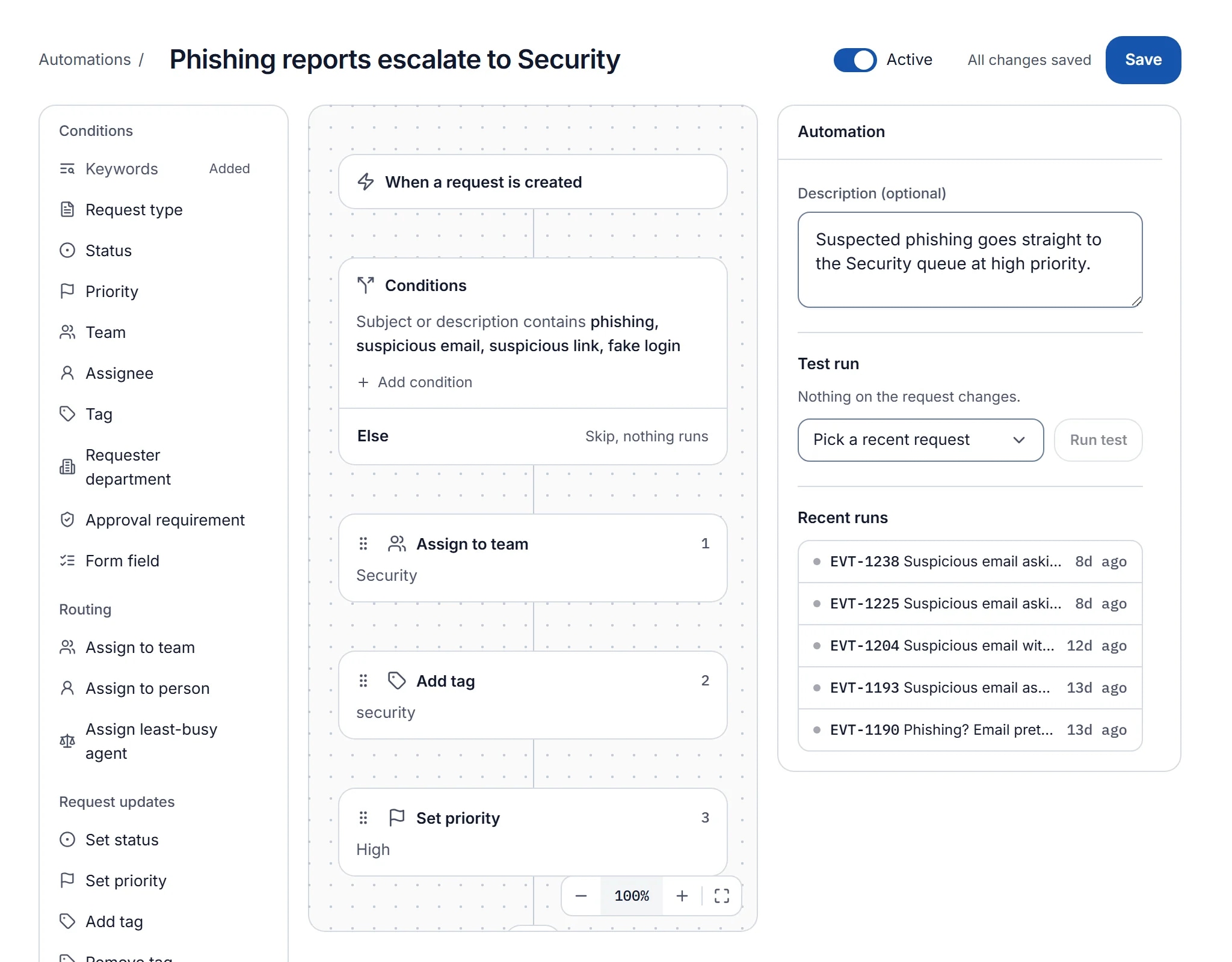
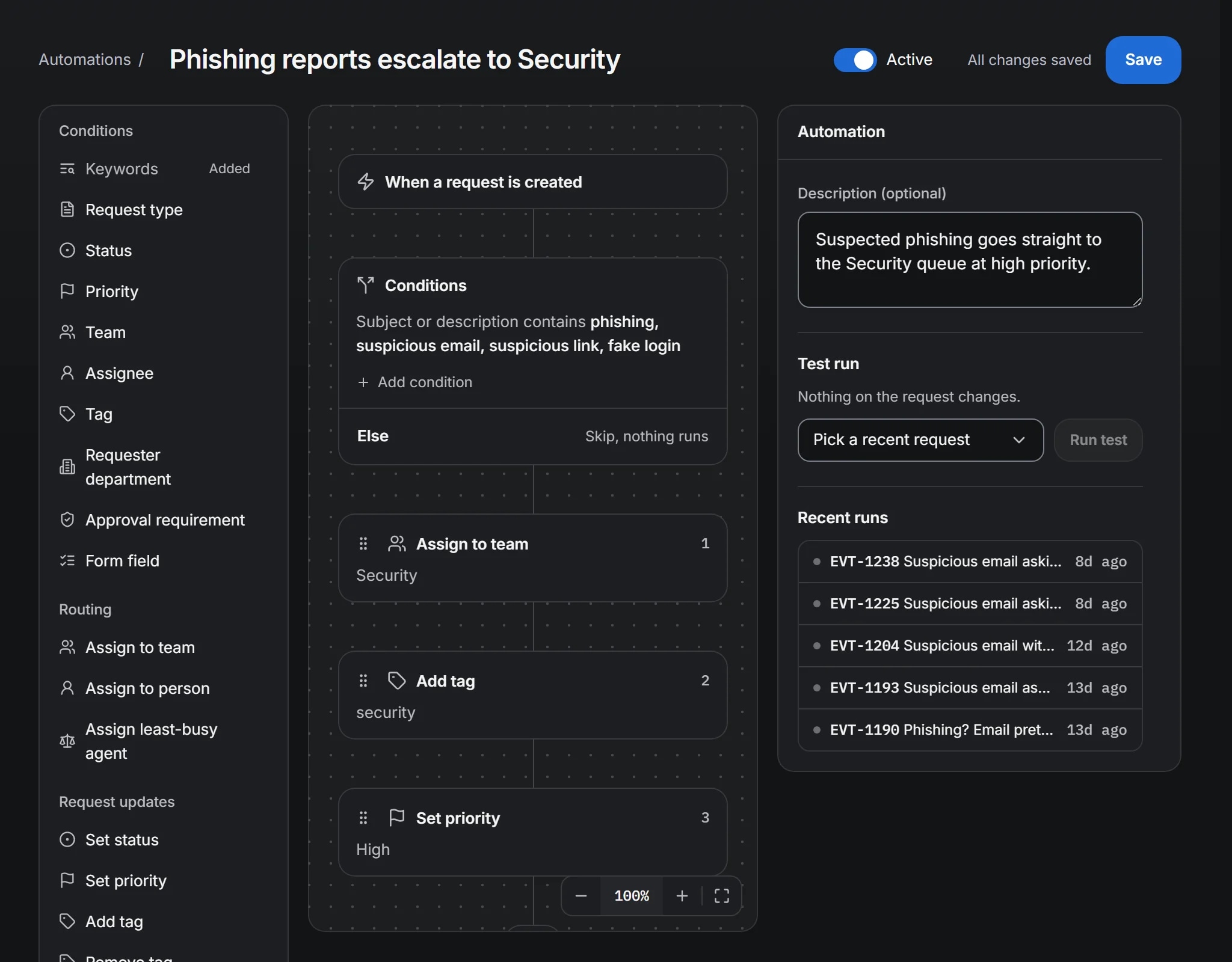
How rules run
A rule has one trigger, one set of conditions that must all be true, and two lanes of ordered actions. The If lane runs when the conditions match. The Else lane runs when they do not, and an empty Else lane means nothing happens. Active rules run top to bottom in the order listed under Admin → Automations each time their trigger fires. When two rules change the same field, the lower rule wins. A rule does not run again on a change its own actions caused. A chain of rules triggering each other stops after five. A rule's actions run in order and stop at the first failure, and the run is recorded as Failed in the rule's history.
Two things follow from this. Specific rules go below general ones, so a general rule cannot undo a specific rule's work. And anything that should happen for every request belongs in its own rule rather than in another rule's Else lane.
Rule one: acknowledge every request
Trigger: Request created. Conditions: none. If lane: Send notification to the requester, or Send email if your requesters work mainly from email.
This rule runs first and matches every request. The acknowledgment tells the employee that the request exists and someone will see it, and it does more than any other rule to reduce "did you get my ticket?" follow-ups. Keep the wording plain and include the request number. Do not promise a response time the SLA policy does not support.
The acknowledgment does not count as a first response. SLA first-response targets measure a reply from an agent.
Rule two: route by request type
Trigger: Request created. Conditions: request type is any of the IT types. If lane: Assign team IT. Build a sibling rule for each team's types, or use one rule per team with an is any of condition over its request types.
Most routing is handled by the request type itself, since each type is assigned an owning team when it is defined. These rules cover the cases that cross teams: a type owned by a shared intake team that should hand off on creation, or a facilities type that routes to a regional team based on a custom field value. If the type's owning team is already correct, you do not need the rule.
The teams and routing documentation explains how team scope affects what each agent sees once the request has been routed.
Rule three: escalate security keywords
Trigger: Request created. Conditions: keywords in the subject or description match any of phishing, suspicious, compromised, malware, ransomware, with exclude terms for the false positives you learn about. If lane: Set priority Urgent, Assign team Security, Send notification to the security lead.
This rule runs below the general routing rules so that a phishing report filed under "General IT" still ends up with the security team at Urgent priority. A reported phishing email is often the first sign of an incident, and NIST SP 800-61 covers what the security team does from there. If it ran above, the routing rule would reassign the request. Paste a few real subjects into the condition while you build it; the builder shows whether each one would match.
Leave the Else lane empty. A request that does not mention a security term should fall through to the ordinary rules, and an Else lane here would run for every other request in the help desk.
The urgent SLA policy from the SLA template matches these requests by priority. That is why the rule sets the priority instead of only sending a notification.
Rule four: assign the least-busy agent
Trigger: Request created. Conditions: assigned team is any of the teams that want it. If lane: Assign least-busy agent.
Least-busy assignment weighs each agent's open requests by priority and SLA risk, and skips agents whose status is Away, Busy, or Offline, so a new request does not go to someone who has left for the day. It runs after routing because it needs the team to be set. It gives the request an owner within seconds of creation, so the first-response clock is someone's responsibility from the start.
Some teams prefer to pick work from an unassigned queue. If that is how your team works, skip this rule for that team instead of assigning and reassigning.
Rule five: nudge the stale request
Trigger: Request reaches an age, set to two days. Conditions: status is any of New, Triaged. If lane: Add internal note saying the request has had no owner action in two days, and Send notification to the owning team's lead.
The age trigger checks every fifteen minutes and fires once a request has waited for the time you set. Matching only on New and Triaged limits it to requests nobody has started. A request In progress has an owner, and a request Waiting on requester is waiting on purpose.
This rule backs up the SLA escalations. An escalation fires at a percentage of the resolution window. This rule fires after a fixed number of days regardless of priority, so it catches a Low-priority request with a two-week SLA window that its owner has forgotten.
Rule six: act on the approval decision
Trigger: Approval decided. Conditions: request type is any of the types that require approval. If lane: Add tag approval-decided, Send notification to the requester.
The trigger fires on both approval and denial, and a rule's conditions cannot check the outcome, so the actions must be correct in both cases. The requester wants to know that a decision was made either way. The tag lets agents filter the queue for requests that have passed their approval step. Do not change the status in this rule: approval already moves the request to Triaged, and denial closes it.
If different request types need different follow-ups after approval, create one rule per type rather than one rule with a long condition. Each rule stays easy to explain.
Rule seven: hand offboarding to your own systems
Trigger: Status changed. Conditions: request type is Offboarding, status is Resolved. If lane: Call a webhook to the endpoint your script listens on.
Call a webhook hands work to your own systems: disabling the account, revoking tokens, updating the CMDB. The POST request is signed with an HMAC (RFC 2104) so your receiver can verify it, and each delivery is logged in the endpoint's history. The webhooks documentation describes the signature and the retry behavior. Build the receiver to be idempotent, because a delivery can arrive more than once.
This is the only rule on the list that calls an outside system. Put it last in the run order, so every change the help desk makes to the request has already happened by the time your script reads it.
Putting them in order
The list under Admin → Automations should read, top to bottom:
- Acknowledge every request
- Route by request type (one rule per team)
- Escalate security keywords
- Assign the least-busy agent
- Nudge the stale request
- Act on the approval decision
- Hand offboarding to your own systems
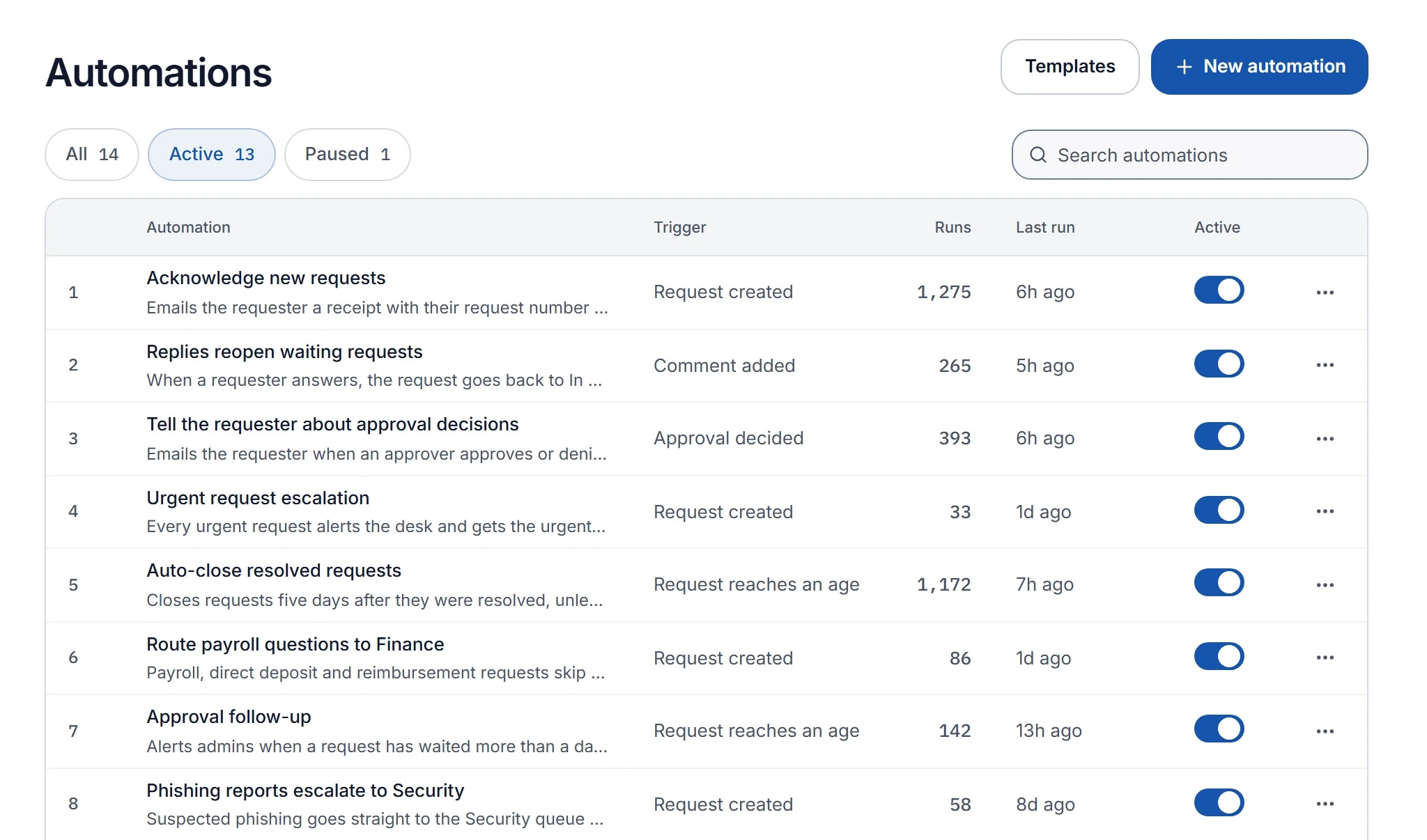
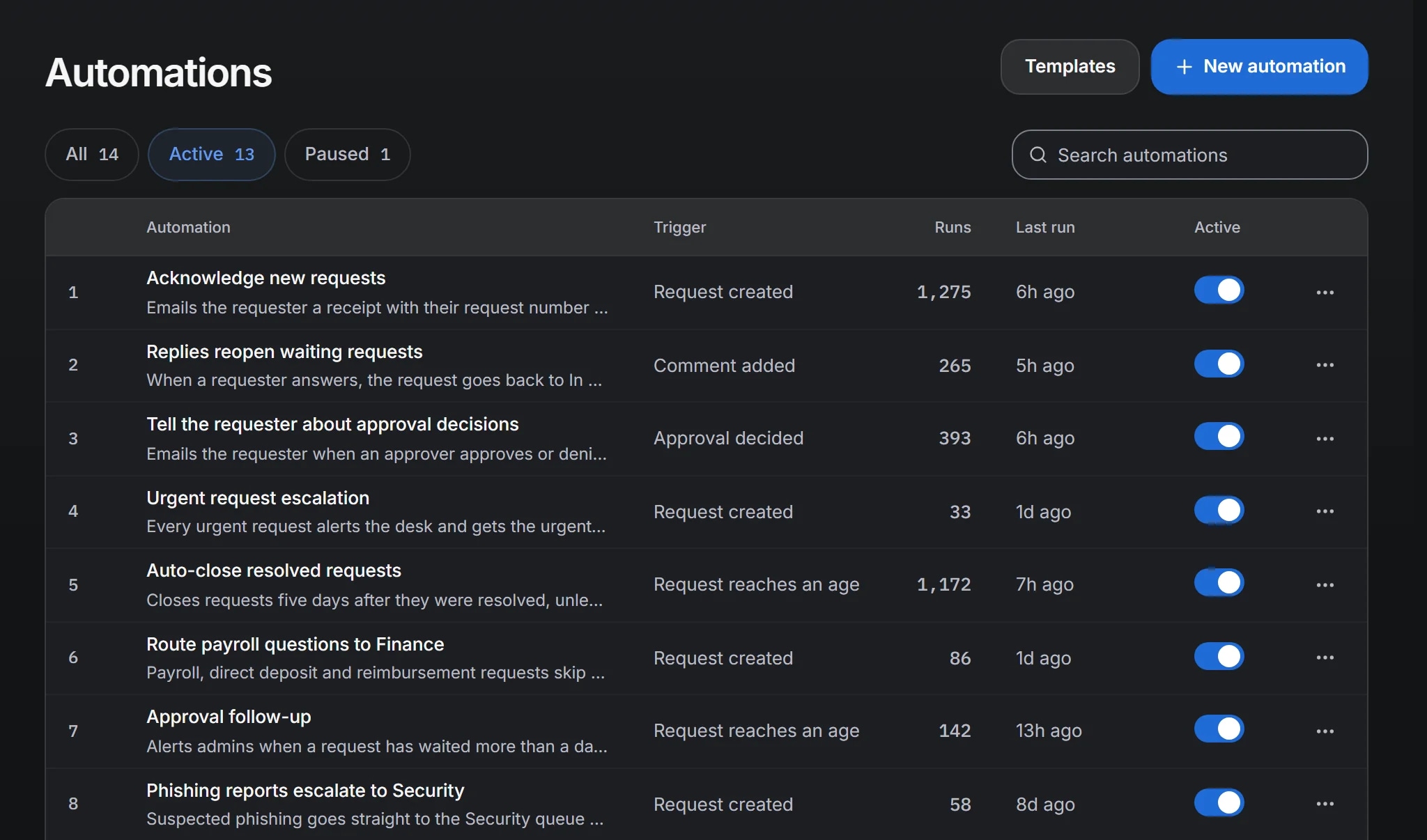
Rules one through four all fire on Request created, in that order. Security escalation sits below routing so its team assignment wins, and least-busy assignment sits below both so it chooses from the team the request ends up with. The remaining three fire on their own triggers, so their relative order matters less. Keeping the webhook last is a good habit as the list grows.
Before you turn each one on
Save the rule as paused. Run the built-in test against a recent real request and check which lane it would take and what it would do. Then set it to Active. Every run is logged as Success or Failed in the rule's history and linked to the request it changed, so when something unexpected happens you can find the rule responsible.
After this first set, add rules one at a time, and give each a one-sentence description a colleague could understand. A help desk stays manageable when every rule can still be explained a year later.
References
- ITIL 4 Practitioner: Service Request ManagementPeopleCert (ITIL). The ITIL 4 practice for handling predefined requests consistently, which routing and assignment rules support.
- Incident Response Recommendations and Considerations for Cybersecurity Risk Management (SP 800-61 Rev. 3)NIST. How a reported phishing email or suspected compromise fits into incident response.
- HMAC: Keyed-Hashing for Message Authentication (RFC 2104)IETF. The construction behind webhook signatures, for anyone writing the receiver.
Filed under automations, internal-it.