An SLA policy template for an internal IT help desk
A starting SLA policy for internal IT: response and resolution targets by priority, business hours, pause statuses, and escalation thresholds.
- Published
- Updated
- Reading time
- 8 min
- By
- EvenTier
Many internal IT teams start with SLA targets from a vendor's default policy or a customer support template, and then spend months explaining why half the queue shows as breached. Those targets were written for a team that answers paying customers around the clock. An internal IT team answers colleagues during working hours, often waits on them for information, and has an approval step in many of its requests. The SLA policy has to account for this, or the numbers will not reflect the team's performance.
This template can be adopted on day one and tuned after a month. Every setting named here is available in EvenTier under Admin → Settings → SLA policies and Admin → Settings → Business hours, and the SLA documentation describes each one. The numbers are a starting point. The reasoning behind each one is what to keep. ITIL 4 calls this work the service level management practice: targets based on what the business needs, with delivery measured and reviewed against them.
Set the business-hours schedule first
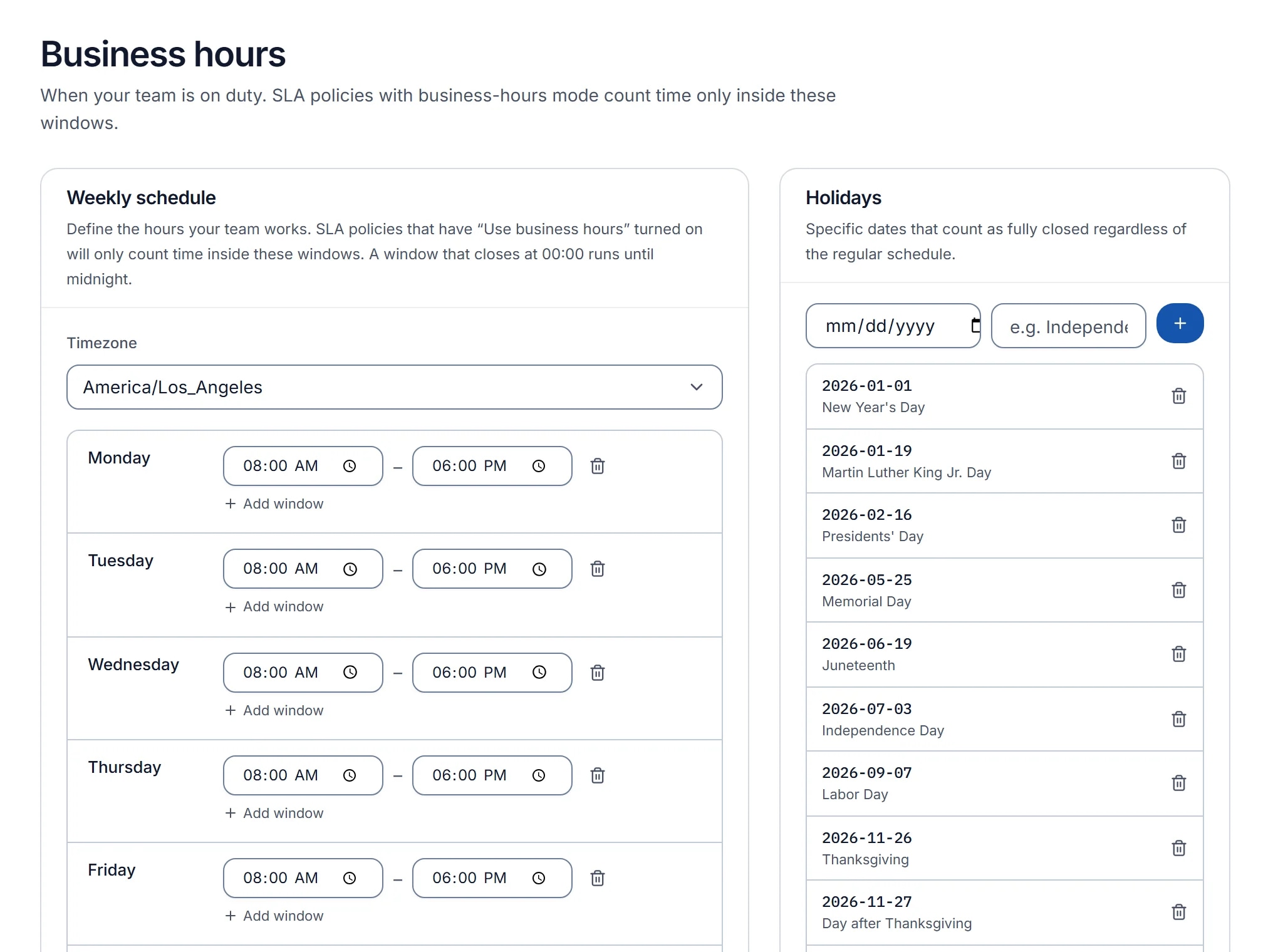
Define the schedule before you set any target. A resolution target of eight hours means something different on a 24-hour clock than on a nine-to-five one, and this difference is why many internal help desks show a wall of breaches on Monday morning.
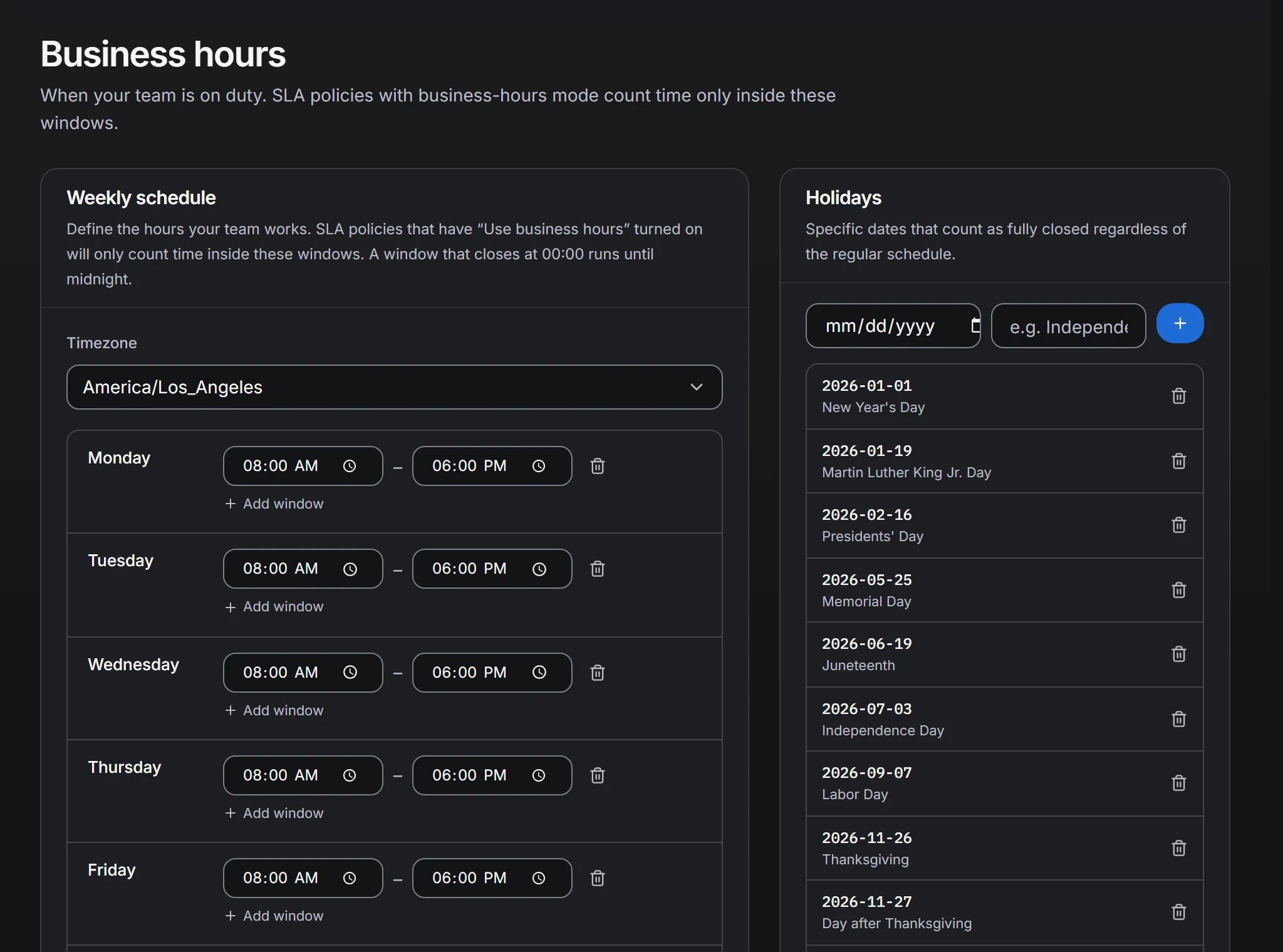
There is one schedule per organization: a time zone, the working days, and one or more windows per day. Add the holiday calendar at the same time. Each policy then chooses whether its targets follow the schedule or the wall clock. Set every ordinary policy to follow the schedule. The exception is the urgent policy, covered below, where a weekend outage still counts.
If your help desk serves offices in several time zones, use the time zone of the team that resolves the work, since the clock measures their hours. Teams working across regions are covered in the teams and routing documentation.
Targets by priority
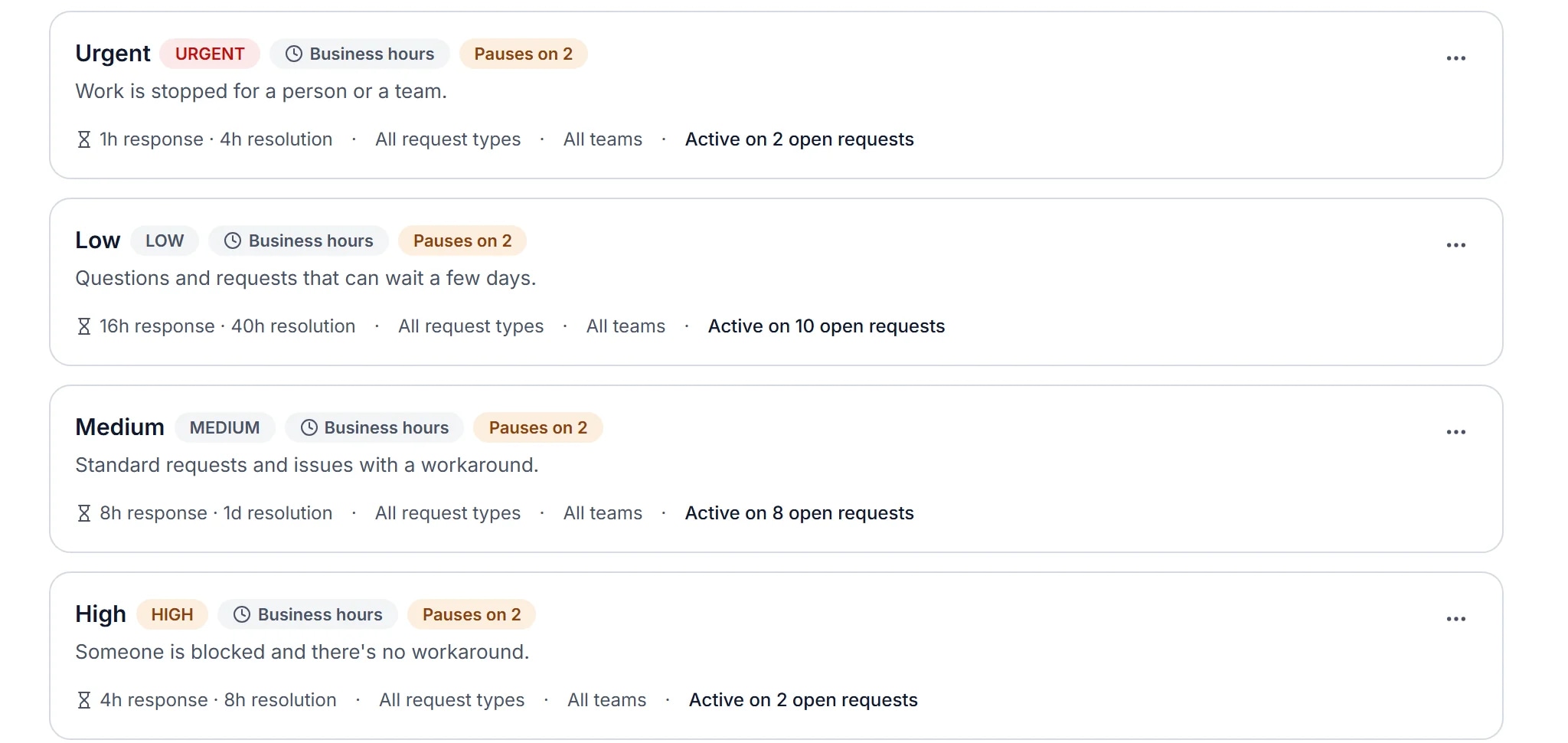
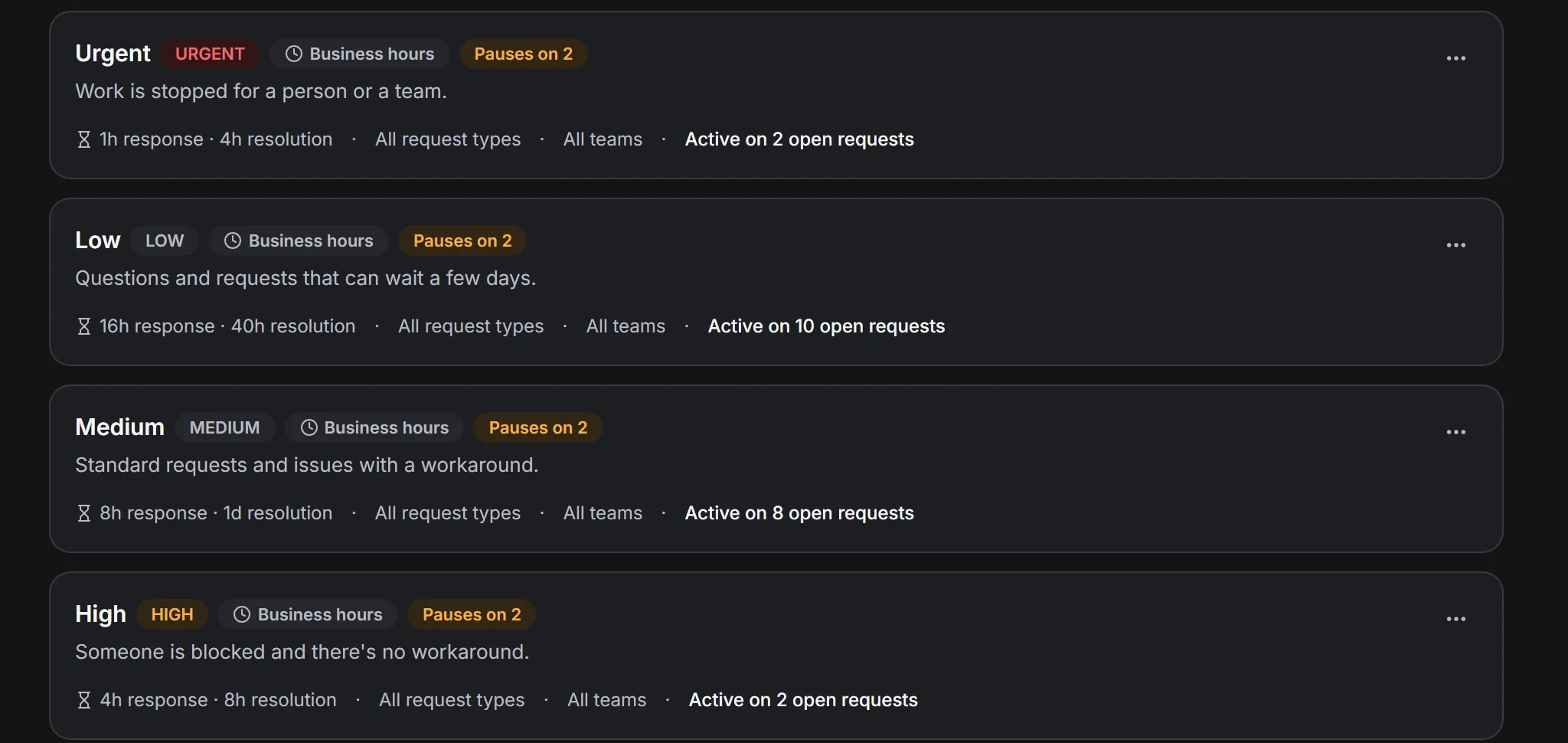
Targets are set in hours, with a first-response target and a resolution target per policy. The template below assumes business-hours calculation, so 8 hours is one working day.
| Priority | First response | Resolution | Clock |
|---|---|---|---|
| Urgent | 1 hour | 8 hours | Wall clock, no pauses |
| High | 4 hours | 16 hours | Business hours |
| Medium | 8 hours | 40 hours | Business hours |
| Low | 16 hours | 80 hours | Business hours |
The table reflects three decisions.
First response is a reply from an agent, which is why it is measured separately from resolution. The automatic acknowledgment an automation rule sends on creation does not count as a response. Requesters know the difference.
Most requests are Medium priority, and 40 business hours is one working week. Teams often set this lower because a week sounds slow, and then live with a queue that is 30 percent breached. A target you can meet nine times out of ten is one the team will take seriously. Tighten it later, based on data.
Low priority gives "whenever you get to it" requests a target. Without one, they are the requests that wait for a quarter. A two-week target gives the escalation rule something to act on.
Pause statuses
In EvenTier, a new workspace starts with one policy per priority, and each pauses on Waiting on requester and Waiting on approval. Each policy lists its own pause statuses, so keep both on every ordinary policy and remove them only where the clock should keep running.
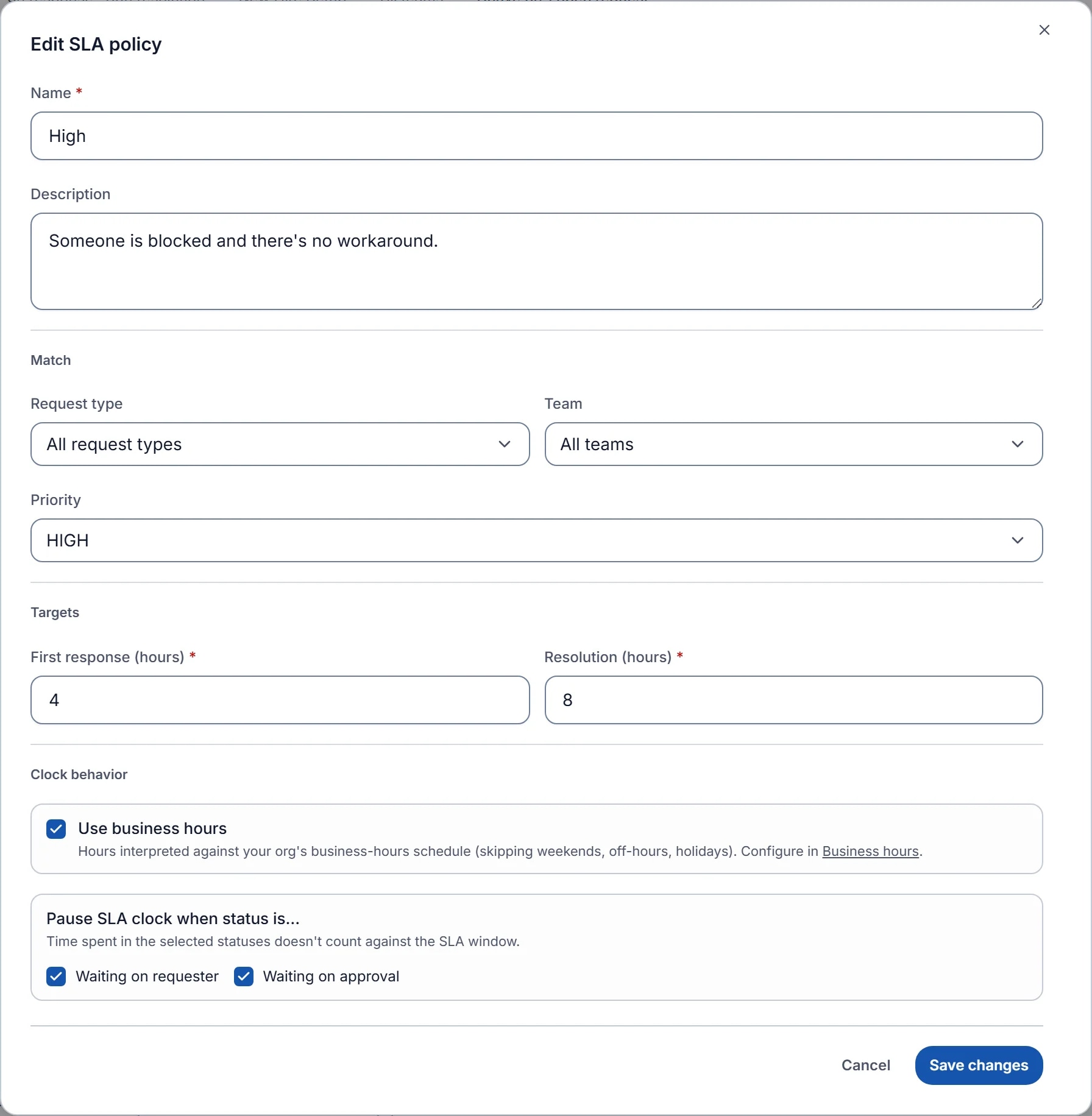
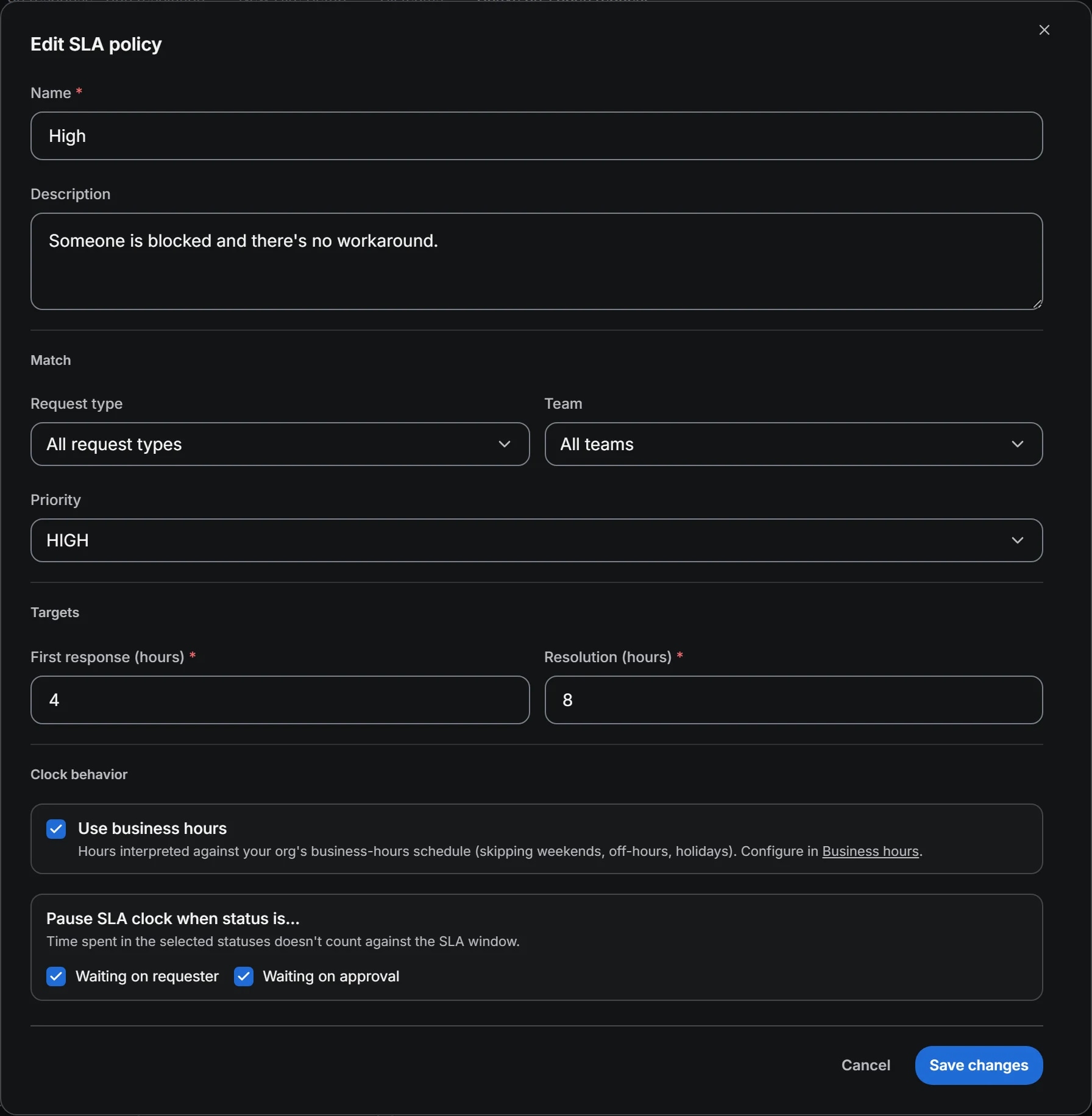
Waiting on requester is the status an agent sets after asking the requester a question. If the clock keeps running while the requester is on holiday, the breach is nobody's fault and the metric stops being useful. Pausing the clock keeps the number accurate, and it gives agents a reason to set the status instead of leaving the request In progress.
Waiting on approval pauses the clock while a manager or budget owner decides. The approvals documentation explains how it works: a request that requires approval moves to Waiting on approval, and the SLA pauses only if the matching policy lists that status. A team that skips this step ends up measuring its managers' response times and reporting the result as IT's resolution time.
Give the urgent policy no pause statuses. An outage waiting on an approval is still an outage. ITIL 4's incident management practice puts restoring service first, and the urgent policy's clock should never stop.
Escalation rules
An escalation rule sets a threshold as a percentage of the resolution window and an action: notify someone, reassign the team, or raise the priority. Each rule fires at most once per request, so it cannot notify the same person on every check.
The template uses two rules per ordinary policy and one on the urgent policy.
At 75 percent of the resolution window, notify the team lead. This is early enough to act and late enough that the agent has had a fair chance to resolve it.
At 100 percent, raise the priority. A breached Medium request becomes High, which moves it up the queue and into a policy with a shorter window. This is the one case where moving a request to a different policy is useful. Otherwise, keep requests on the policy they started with.
On the urgent policy, notify the on-call lead at 50 percent. With an eight-hour window, that fires at four hours, by which point an outage should either have a plan or needs a different owner.
Reassigning the team is the right action when a second-line team exists. If every escalation goes to the same queue, reassignment only adds a notification.
Policy matching
Policies match on request type, priority, and team, and the most specific match wins: request type outranks priority, and priority outranks team. This ordering lets a short list of policies cover a large catalog.
Start with the four priority policies in the table. Then add request type policies only for the types whose targets differ from the priority default. Two common examples are a new-hire equipment type with a resolution target tied to the start date, and a password reset type with a one-hour resolution target regardless of priority. Each gets its own policy, and the request type match wins over whatever priority the requester chose.
Avoid team-level policies at first. They are tempting as a way to give one team a longer window, but they tend to hide a staffing problem inside the SLA configuration.
Reading the queue
The queue shows an at-risk badge on requests approaching their deadline, and sorting by SLA risk puts the requests closest to breaching at the top. Agents should start the day with that sort, and the team lead should check the proportion of requests in each state: fresh, responded, at risk, and breached. A healthy internal help desk has most requests fresh or responded, a small at-risk group, and a breached group small enough to explain request by request.
If the breached group is large and spread across all request types, the targets are too tight for the volume. If it is large and concentrated in one request type, that type needs its own policy or its own owner. Treat the policy as a starting assumption and the queue as the data that tests it.
Setting it up
Setting this up in EvenTier takes under an hour. All of it requires the Manage SLA permission.
- Admin → Settings → Business hours: set the timezone, working days, daily windows, and the holiday calendar.
- Admin → Settings → SLA policies: a new workspace already has Urgent, High, Medium and Low policies on business hours, pausing on both waiting statuses. Edit Urgent first: switch it to wall-clock targets, remove its pause statuses, and add its 50 percent notify rule.
- Edit High, Medium, and Low to the targets in the table, and add the 75 percent notify and 100 percent bump rules.
- Add the request type policies for the types whose targets differ, such as new-hire equipment and password resets.
- Open the queue, sort by SLA risk, and check a handful of existing requests against the policy you expected them to match.
Automation rules can support the policies: a rule on the Request created trigger that sets the priority from a keyword, or one that assigns the least-busy agent so the request has an owner when the first-response clock starts. The guide to the first automation rules covers both.
Review after a month
A month of data is enough to start tuning. Three questions cover most of it.
Which policy breaches most? If it is Medium, the target is probably too tight for the volume, or triage is slow and requests stay New for a day before anyone sets a priority. The queue's status breakdown shows which.
Which pause status is used least? If Waiting on requester is rarely set, agents are leaving requests In progress while they wait, and the policy counts that time against them. Fix the habit in the team rather than loosening the target.
Which escalation fired most? If the 75 percent notification fires on most Medium requests, it has become noise. Move it to 85 percent or change the action to a tag the lead reviews once a day.
Change one number at a time and record why. A policy lasts when someone can explain every line of it.
References
- ITIL 4 Practitioner: Service Level ManagementPeopleCert (ITIL). The ITIL 4 practice for setting business-based service targets and managing delivery against them.
- ITIL 4 Practitioner: Incident ManagementPeopleCert (ITIL). The ITIL 4 practice for restoring normal service as quickly as possible, the job of the urgent policy.
Filed under slas, internal-it.