Approval workflow examples for internal requests
Hardware, access, onboarding, and spend: how to set up each approval as a request type, who approves, what pauses the SLA, and what the audit log records.
- Published
- Updated
- Reading time
- 7 min
- By
- EvenTier
Many internal requests need approval before work can start. A manager approves a laptop purchase, a system owner approves an admin role, and a budget holder approves a vendor payment. When an auditor asks who approved something, the answer should be an audit log entry with a name, a timestamp, and the request it belongs to.
This guide covers four common approvals (hardware, access, onboarding, and spend) and shows how to set each one up in EvenTier. In ITIL 4 terms these are service requests: predefined requests that employees start and the desk fulfils. The approvals documentation explains the settings. This guide covers the decisions: which request types need an approver, who the approver should be, what the SLA does while the request waits, and what the audit log records afterward.
How approvals work
Each request type has an Approval required setting and an approval chain: a single approver, or an ordered list of approvers. When the setting is on, a new request of that type goes to the first approver in the chain, honoring any active delegation, and moves to the Waiting on approval status. The approver sees the request in their inbox and on the Approvals queue and approves or denies it. Each later step is sent to its approver only after the previous step approves. When the last step approves, the request moves to Triaged so the team can start work. A denial at any step closes it. Each decision is recorded in the audit log. An agent can also send any open request to a chosen approver manually, which covers cases the request type setting cannot predict. The Approval decided trigger lets an automation rule act on the decision. The SLA clock pauses during the wait only if the matching SLA policy lists Waiting on approval as a pause status.
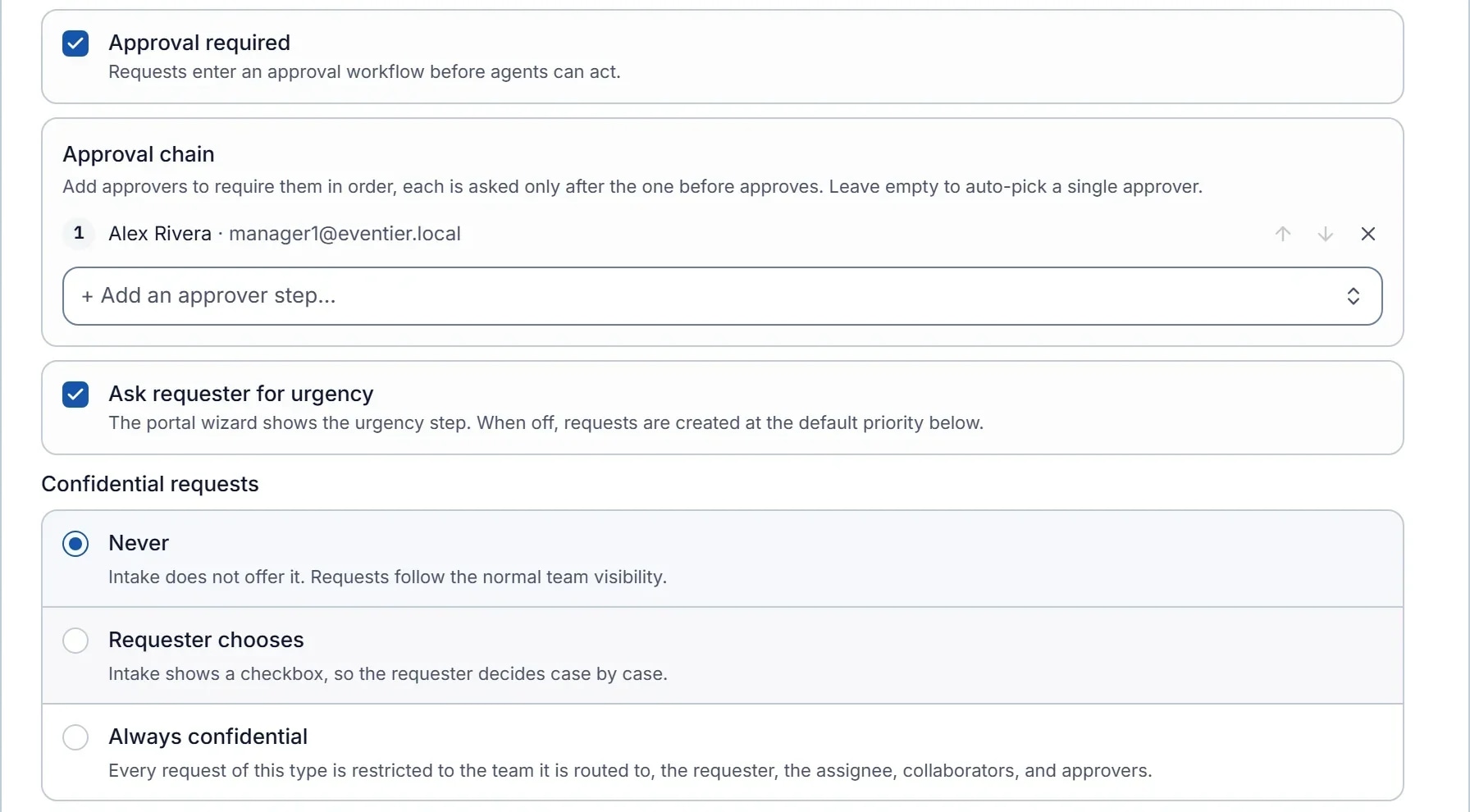
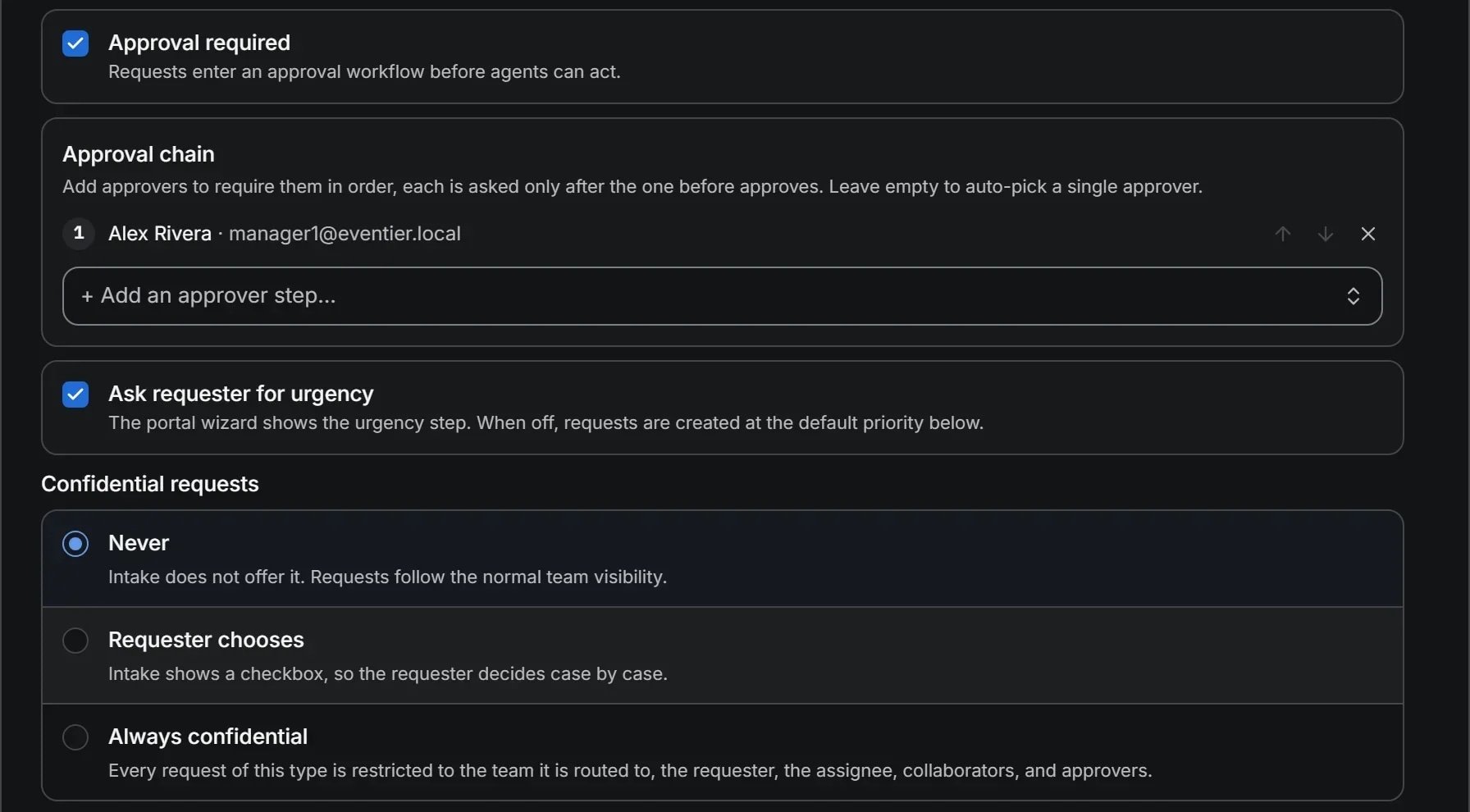
Only one step is active at a time. For a second sign-off, add a second step to the request type's approval chain, or have an agent send the request to another approver after the chain completes. Keep chains short when you design your own approvals. A long approval chain is slow, and people find ways around it.
Example one: hardware
The request type is Hardware request, owned by the IT team, with a form that asks for the device, the justification, and the needed-by date. Approval required is on.
The approver is the requester's manager. The approval confirms the spend and the need, and the manager knows both. IT fulfills the request, so IT should not also approve it.
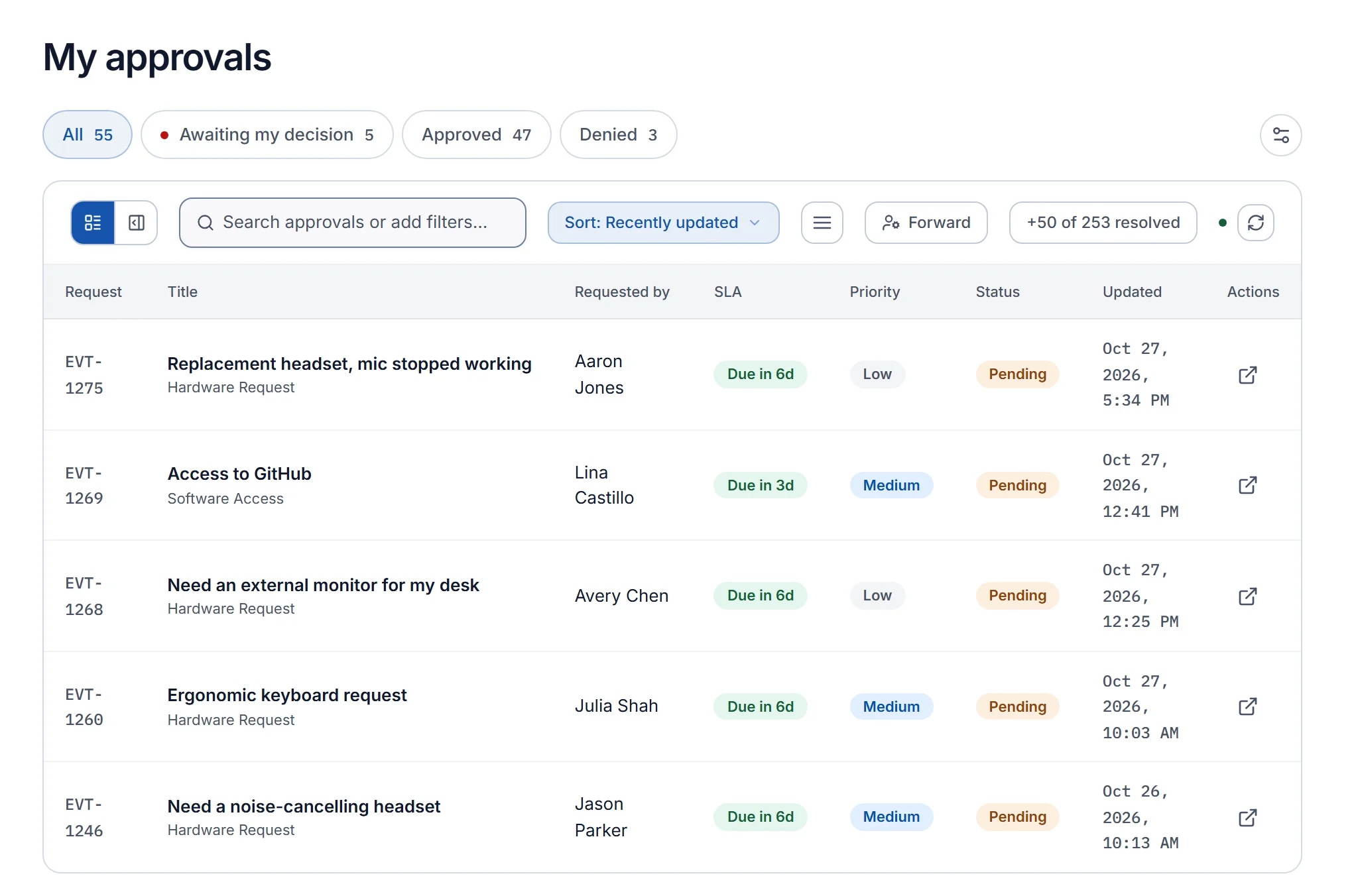
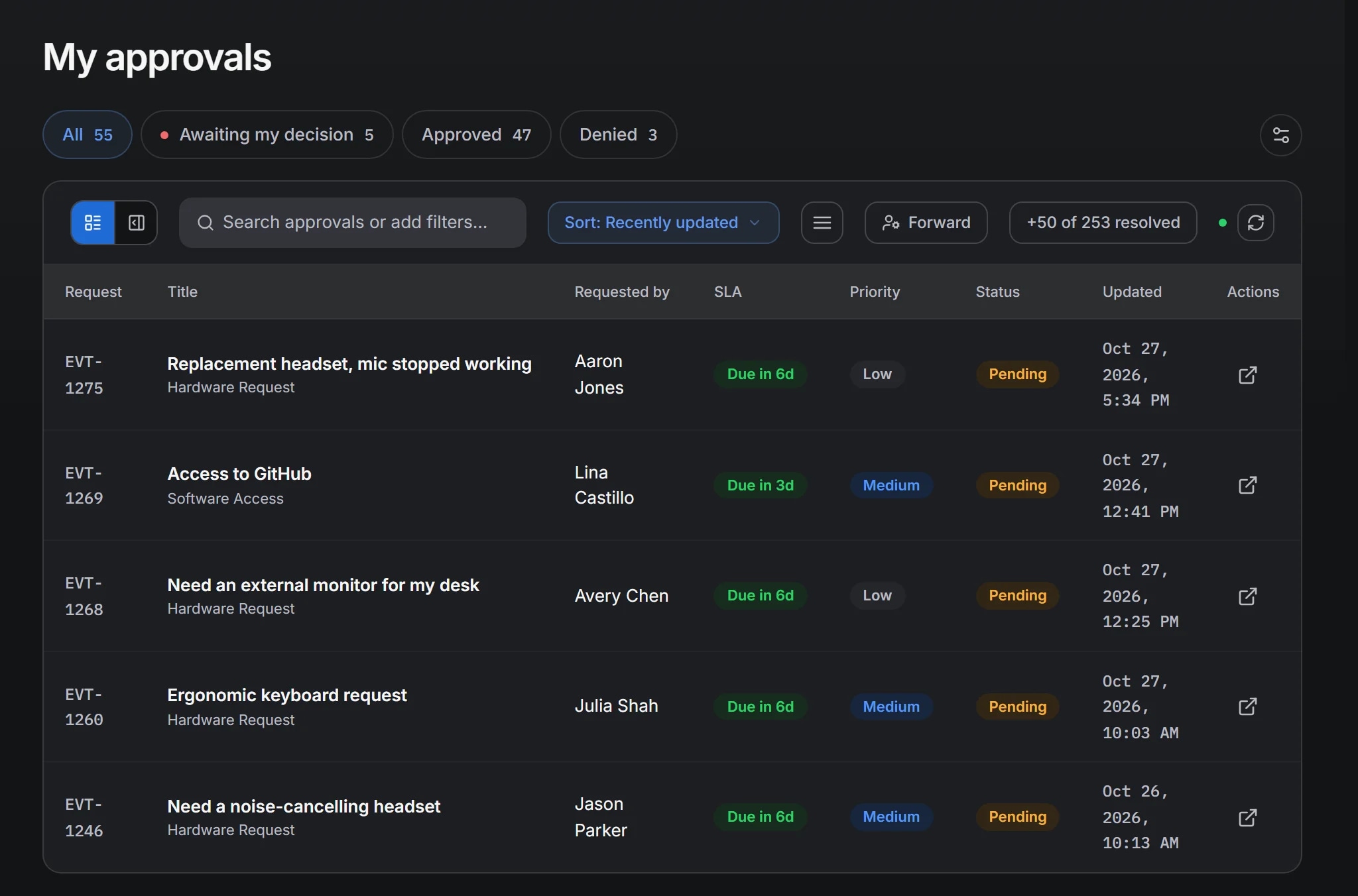
The SLA policy for this type lists Waiting on approval as a pause status, so the time a manager takes to decide does not count against IT. Set a resolution target of five business days for the fulfillment itself, so a laptop approved on Monday ships before the following Monday.
Afterward, the audit log shows the request, the manager's decision with its timestamp, and the fulfillment steps in the request's activity history. Link the asset to the request when the device is assigned, so the asset record and the approval reference each other. The assets documentation covers the link.
Example two: access
The request type is Access request, with a form that names the system, the role being requested, and the duration if the access is temporary. Approval required is on.
The approver is the system owner. A manager may approve admin rights in a system they have never used, because the request looks reasonable and the requester reports to them. The system owner knows what the role allows and is the right person to decide. Keeping the person who asks, the person who approves and the person who grants apart is the separation of duties that auditors test against frameworks such as NIST SP 800-53 (control AC-5) and the AICPA trust services criteria behind SOC 2 reports.
Pause the SLA while the request waits for approval, but set a short first-response target of four business hours so the requester hears from an agent while the owner decides. People waiting for access often assume nothing is happening. The first response tells them otherwise.
Consider making this request type confidential. Access requests name systems and roles, and in a help desk shared by HR, finance, and IT, the list of who asked for what is sensitive. Confidentiality is set per request type in the request type editor. A confidential request is visible only to the requester, the assignee and watchers, the team it is routed to, explicit grantees, and the approver.
After the decision, an automation rule on the Approval decided trigger can add a tag such as access-reviewed and post an internal note with the expiry date for temporary access. The trigger fires on both approval and denial, and a rule's conditions cannot check the outcome, so keep the actions neutral. Word the tag and the note so they are correct in both cases.
Example three: onboarding
Onboarding is one request type with a longer form: start date, team, equipment bundle, systems to provision. It is owned by IT or by a shared onboarding team, and Approval required is on.
The approver is the hiring manager, who confirms that the start date and the equipment bundle are correct. The main value of the approval is that it makes the manager check the list before IT images the laptop.
Onboarding has a deadline (the start date) rather than a duration, but SLA targets are measured in hours. The practical approach is a request type policy with a resolution target that matches your lead time, for example ten business days, plus an automation rule on the Request reaches an age trigger that notifies the owning team when a new-hire request has waited two days without triage. The guide to the first automation rules includes that rule.
Onboarding requests carry personal data about a person who is not yet an employee. Set the type's Confidential requests setting to Always confidential, so only the people on the request can see the form answers.
Example four: spend
Purchase requests, budget and expense approvals, and vendor onboarding each become their own request type, owned by finance, with the amount, the cost center, and the general-ledger account as required fields. Approval required is on for all of them.
The approver is the budget holder for the cost center named on the form. Auditors ask about this approval more than any other, so an accurate audit log matters more than speed. Pause the SLA on approval, and set a resolution target for the fulfillment that matches the payment run schedule rather than the help desk's usual pace.
If purchases above a threshold need a second sign-off, keep it explicit. Approval chains are set per request type, so a separate request type for large purchases, with its own two-step chain, is easier to explain to an auditor than a rule that adds an approval after the fact. If one type must serve both, the finance agent sends the approved request to the second approver manually, and the second decision is recorded as a second audit log entry on the same request.
Vendor onboarding is the type most often denied, and denial closes the request. That is the right outcome. A denied vendor should not stay in the queue, and the closed request with its decision shows that the vendor was considered and refused. The finance request management page describes the form fields in more detail.
Delegation, holidays, and the approver who left
Approvers go on leave. An approver sets a delegation from Portal → Approvals → Forward by choosing a delegate and a date range. While the delegation is active, every approval that would go to the approver goes to the delegate instead, and the audit log names the person who made the decision. Delegation applies across the whole organization, so an approver who holds two roles delegates both.
When an approver leaves the company, their pending approvals do not need to wait for a successor. A manager or an admin can force-resolve a request. This automatically denies any pending approval on it and records an internal audit note. Use this sparingly, and add a note explaining why.
What the audit log records
Each approval decision writes an audit log entry: who decided, what they decided, and when. The request's activity history shows the move into Waiting on approval and out again. The change log keeps the field edits around it. If you have connected a SIEM, all of this streams to it, so you hold a copy outside the help desk.
Use this as the test for any approval you add. If the approval produces a record an auditor can read and understand on their own, it is worth having. If it only exists to make a request feel considered, people will work around it.
For more on what an audit log entry needs to contain, see what an audit log must record.
References
- ITIL 4 Practitioner: Service Request ManagementPeopleCert (ITIL). The ITIL 4 practice for predefined, user-initiated requests such as hardware and access.
- Security and Privacy Controls for Information Systems and Organizations (SP 800-53 Rev. 5)NIST. Control catalog; AC-2 (account management), AC-5 (separation of duties) and AC-6 (least privilege) cover access approvals.
- 2017 Trust Services Criteria (With Revised Points of Focus, 2022)AICPA. The criteria SOC 2 reports test, including logical access controls. Free account required to download.
Filed under approvals, internal-it, finance.