Migrating from Zendesk without losing ticket history
A plan for moving an internal help desk off Zendesk: the first import, field and status mapping, the delta sync at cutover, and what requesters see.
- Published
- Updated
- Reading time
- 8 min
- By
- EvenTier
Teams often stay on a help desk they have outgrown because of the ticket history. Three years of tickets document who asked for what, how each request was resolved, and what the team promised. Moving without that history means starting from nothing, and most teams will put up with a lot to avoid it.
This plan starts with the history and works outward. It assumes a Zendesk instance used for internal support, a team of a few agents, and a cutover you want to finish in two weeks without a weekend of downtime. The import features are described in the importing and migrating documentation, and the product comparison is on the Zendesk comparison page. This guide is the migration plan.
What imports and what does not
Ticket history imports with the original created and resolved dates, the requester and assignee matched by email, the tags, and the full conversation, with internal notes kept internal. Zendesk Guide articles import into the knowledge base. Requesters and authors who are not yet in your workspace are created as placeholder users matched by email, so the record of who asked is kept.
Two things do not happen by design. Imported tickets do not trigger automations, notifications, or SLA timers, so nobody is notified about a request from two years ago and historical tickets do not affect your live SLA reporting. Imported knowledge base articles are saved as Draft unless the importing user holds the Approve knowledge base permission, so a bulk import cannot publish articles without review.
Imports are idempotent. Every imported record stores its source system and original ID, so running the same import twice updates the existing records instead of creating duplicates. This is what makes the rest of the plan safe.
Week one: inventory and first import
Start by deciding how far back to import. Importing every ticket since the account was created is usually the right choice: the cost is a longer background job, and the benefit is a complete history. If your Zendesk account mixes customer support tickets with internal ones, decide now which groups or tags identify the internal tickets, because the import pulls everything the connector can see.
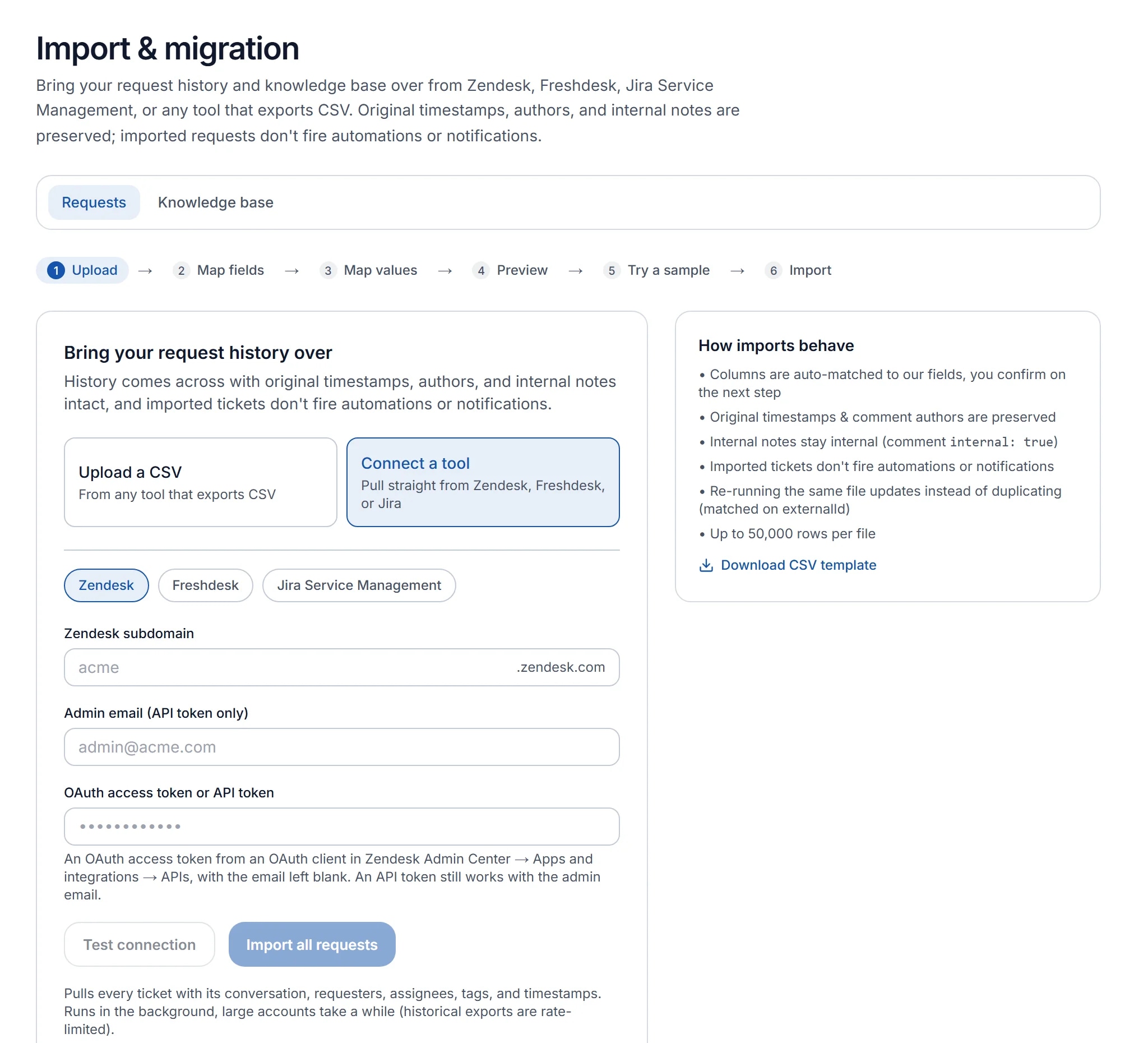
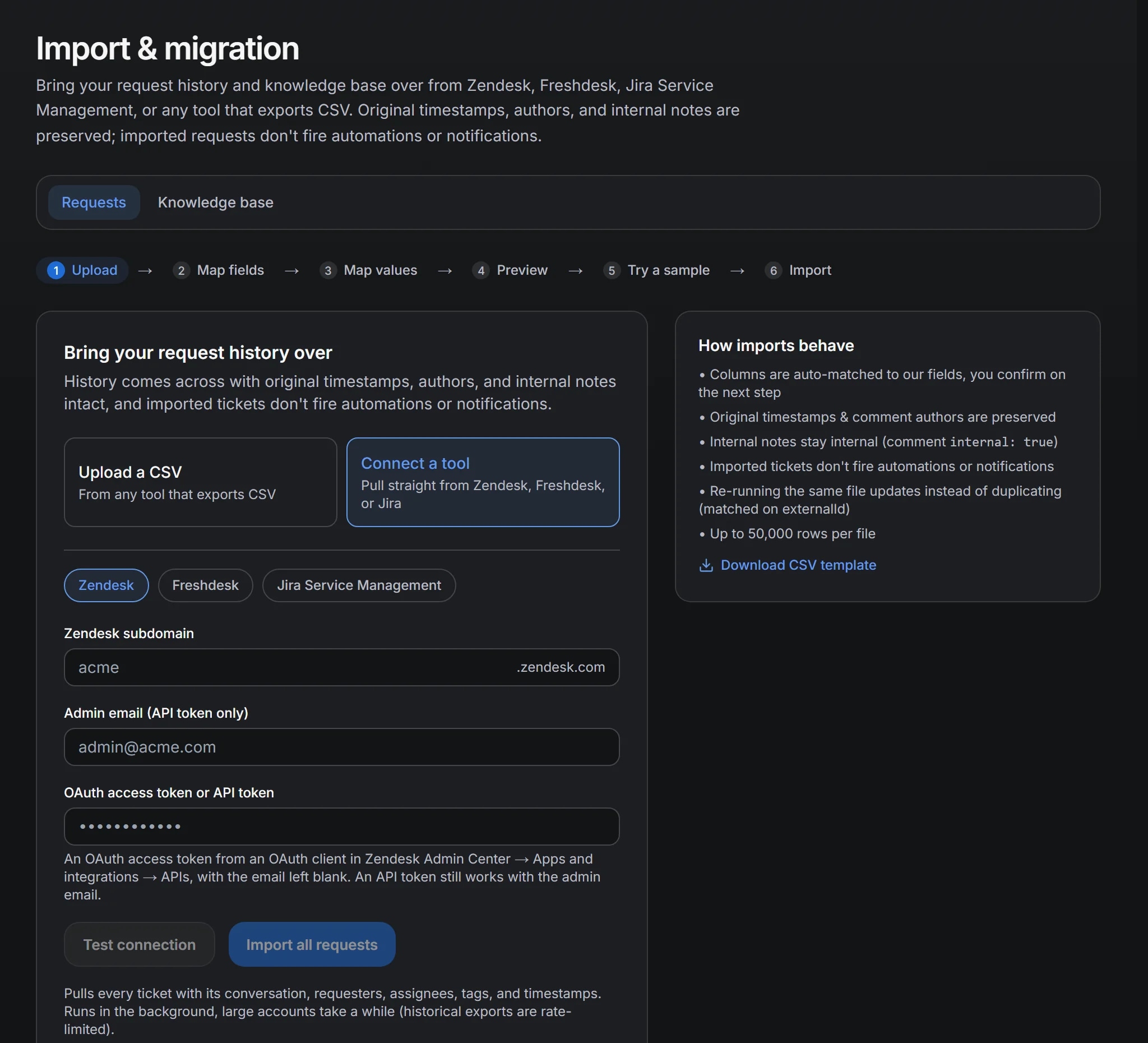
Then run the first import. Go to Admin → Settings → Import & migration, open the Requests tab, choose Connect a tool, pick Zendesk, and enter your Zendesk subdomain and an OAuth access token, leaving the email blank. Zendesk's security and authentication guide now marks API tokens as deprecated and recommends OAuth access tokens; an API token still works if you enter an admin's email address with it and token access is turned on in the Zendesk Admin Center. Either way, create the credential for the migration and revoke it once the cutover is done. Test the connection, then start the import, which runs in the background. As the first tickets arrive, open a few and check the subject, the requester, the created and resolved timestamps, the tags, and that internal notes are marked internal. If something is wrong, fix the cause, such as an agent who is not yet in the workspace, and run the import again. Because imports are idempotent, the second run updates the tickets already imported instead of duplicating them.
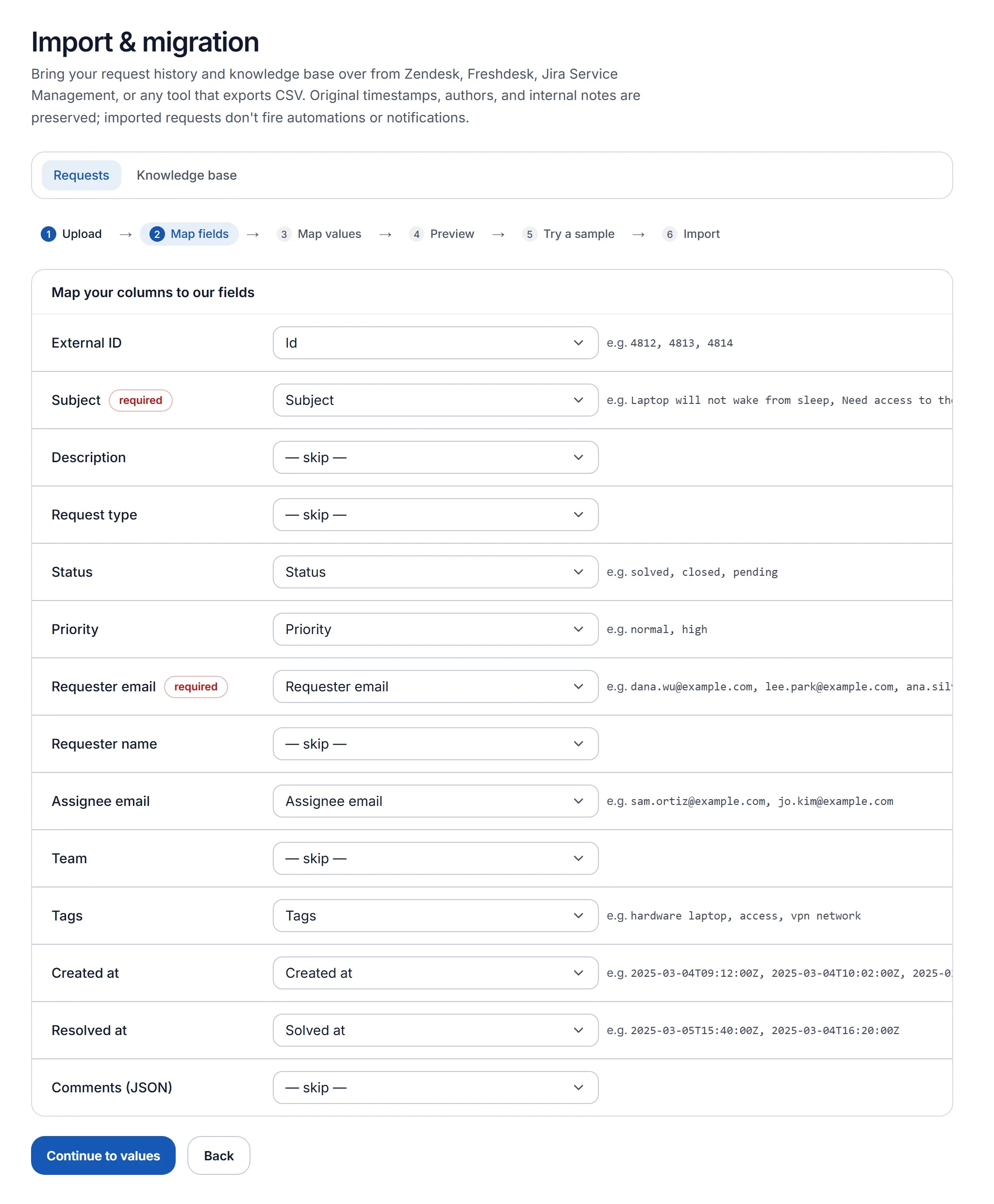
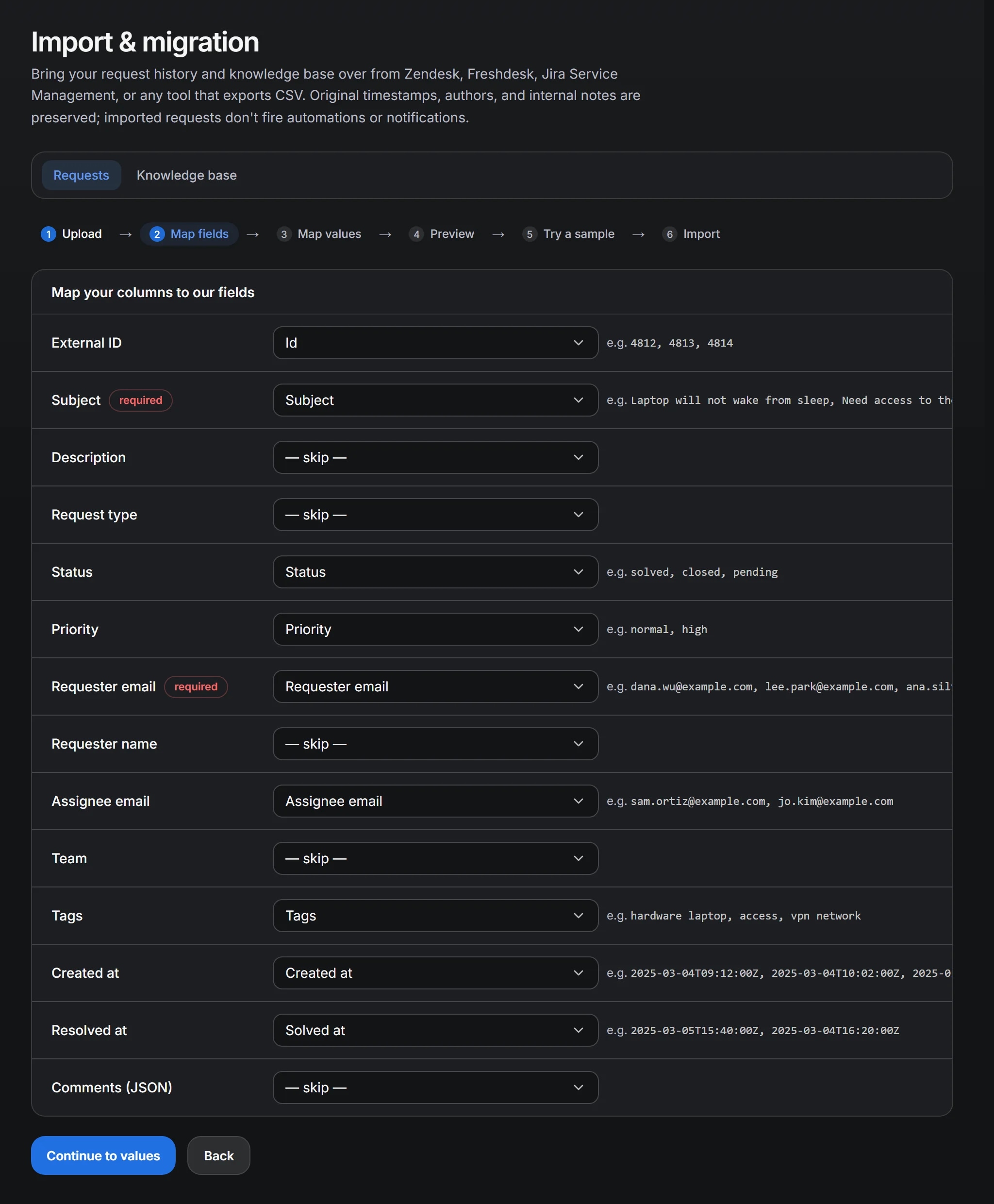
CSV import covers anything the connector does not. The import wizard maps columns to fields automatically and shows sample values from your file, maps Zendesk's status and priority values to EvenTier's, and previews the result for each record: create, update, skip, or error, with a reason. Statuses that match nothing are shown as unmapped instead of being assigned a wrong value. Fix the mapping and run the preview again. A CSV import can also try a sample of ten tickets first; discarding the sample removes those tickets and any placeholder requesters it added.
Mapping statuses and priorities
Zendesk's statuses do not map one to one onto EvenTier's seven request statuses, so write the mapping down before the full import.
| Zendesk | EvenTier | Note |
|---|---|---|
| New | New | Untouched since arrival |
| Open | In progress | Someone owns it |
| Pending | Waiting on requester | The clock will pause here on live tickets if the policy says so |
| On-hold | Waiting on requester | The connector maps it automatically; a CSV import lets you choose |
| Solved | Resolved | The requester can still reopen |
| Closed | Closed | Final |
On-hold is worth a look. Zendesk describes it as an internal status for waiting on someone other than the requester, so teams used it differently: some for approvals, some for vendor waits, and some for anything parked. The connector maps it to Waiting on requester. With a CSV import you choose the mapping that fits most of your tickets and tag the exceptions during the preview. Waiting on approval is set only by the approval workflow, so it is not a mapping target.
Priorities map directly if you used Zendesk's four priority levels. If your team used urgency fields or tags instead, map them to the priority field in the CSV wizard, since SLA policies and queue sorting both use priority. The request lifecycle documentation describes the seven statuses.
Week one, continued: users and request types
Users import by CSV or through SCIM provisioning. If you are connecting an identity provider (IdP) anyway, set up SCIM first, so agents and requesters exist with the right email addresses before the ticket import tries to match them. Placeholder users fill any gaps and merge into the real account when the email matches.
Request types have no direct equivalent in Zendesk. Zendesk tickets have forms and fields. EvenTier routes on request type, and the type decides the form, the owning team, whether approval is required, and which SLA policy applies. Define the request types that cover most of your volume before the full import: hardware, access, general IT, and any HR or facilities types the help desk already handles. The import does not assign request types from history, so imported tickets get the default type, and new requests arrive with the correct type through the portal.
Week two: the full import and the parallel run
Run the full import. The connector reads Zendesk's cursor-based incremental export page by page, waits when Zendesk asks it to slow down under its rate limits, and shows progress while it runs in the background. Large imports take hours and do not need to be watched.
Then run both tools in parallel for a few days. New requests go to EvenTier through the portal, which employees reach through your IdP. Zendesk stays open for tickets already in progress. Agents work from the EvenTier queue and finish the open Zendesk tickets in Zendesk. Do not move open tickets by hand; the delta sync handles them.
Use the parallel run to set up SLA policies and the first automation rules against real traffic. The SLA policy template is a good starting point. The policies apply only to new requests, since imported ones have no SLA timers.
Cutover: the delta sync
When the parallel run ends, the recent imports list shows a Sync new & updated action next to the completed Zendesk import. Enter the token again and run it. Only tickets created or changed since the first import are pulled. Existing tickets are updated in place and new ones are added. This is the cutover, and it needs no downtime. The last tickets touched in Zendesk arrive with their final status and comments, and the Zendesk instance can be set to read-only.
Run the delta sync once more the next morning to catch anything added overnight. Because imports are idempotent, an extra run is harmless, and it is worth confirming that before you switch Zendesk off.
Knowledge base
Zendesk Guide articles import from the Knowledge base tab with the same connector, which reads them through the Help Center articles API. Article bodies are converted from HTML to Markdown. They arrive as Draft unless the importing user holds the approval permission. This is the behavior you want, because a knowledge base migrated from another tool usually contains articles that are out of date.
Review the drafts in batches by category. Publish the ones that are current, retire the ones that are not, and note the gaps. The knowledge base documentation describes the Draft, Review, Published workflow and the report of search terms with no results, which shows after a month which articles you still need.
What requesters see
Employees care about three things: where to go, whether their old requests still exist, and whether anyone has seen the new one.
Where to go is the portal link, behind SSO, with request types organized by team. Send it once, from someone they recognize, and put it wherever the old link was.
Their old requests still exist. Imported tickets show the original dates and the full conversation, and a requester who opens the portal sees their history. Nobody receives a notification about those tickets, because imports send none.
Whether anyone has seen the new request is answered by the first automation rule to turn on: an acknowledgment on the Request created trigger. It sends a notification or an email as soon as a request arrives. A help desk that changes tools and goes quiet for a day loses trust quickly.
After cutover
After cutover, every ticket the team handled in Zendesk is a request in EvenTier with its original timestamps and authors. The imported knowledge base is under review, and the audit log records the import itself, including each run and the delta syncs. The history came with you.
For the broader question of whether a customer support tool fits an internal help desk, see internal help desk versus customer help desk.
References
- Incremental ExportsZendesk Developer Docs. The cursor-based ticket export the connector reads, returning only what changed since a point in time.
- Rate limitsZendesk Developer Docs. Request limits per plan, including the lower limit on incremental export endpoints.
- Security and authenticationZendesk Developer Docs. How API token authentication works, and Zendesk's own guidance on tokens and OAuth.
- About open vs. pending and on-hold ticketsZendesk help. What each Zendesk status means, including the internal On-hold status.
- ArticlesZendesk Developer Docs. The Help Center API that Guide articles are read from.
Filed under migration, zendesk.